
User Manual
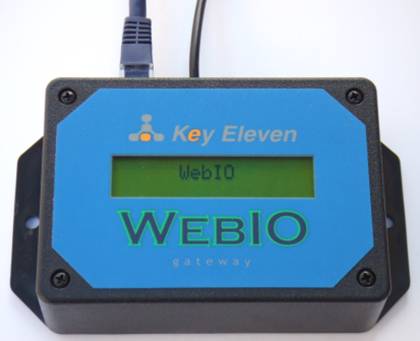
User Manual Version 1.4
Revision Date: 11/13/2007

Copyrightã2007 Key Eleven, LLC
Table of Contents
1. Restoring Factory Default Settings
2. Allowing Storage of User Settings
3. Display the Current IP Address
Setting the WebIO IP Address Using the WebIO Network Setup Utility
Setting the WebIO IP Address Using a DHCP Server
Getting an IP Address from a DHCP server
Manually Setting the WebIO IP Address Using ARP and Ping
Setting a Static IP Address (When no DHCP Server is Available)
WebIO Detailed Manual Network Setup
Product Information
For customers in the United States and Canada
This equipment had been tested and fount to comply with the limits for a Class B digital device, pursuant to Part 15 of the FCC Rules.
These limits are designed to provide reasonable protection against harmful interference in a residential installation. This equipment generates, uses and can radiate radio frequency energy and, if not installed and used in accordance with the instructions, may cause harmful interference to radio communications. However, there is no guarantee that interference will not occur in a particular installation. If this equipment does cause harmful interference to radio or television reception, which can be determined by turning the equipment off and on, the user is encouraged to try to correct the interference by one or more of the following measures:
- Reorient or relocate the receiving antenna.
- Increase the separation between the equipment and receiver.
- Connect the equipment in to an outlet on a circuit different from that to which the receiver is connected.
- Consult the dealer or an experienced radio/TV technician for help.
You are cautioned that any changes or modifications not expressly approved in this manual could void your authority to operate this equipment
This device complies with Part 15 of the FCC Rules. Operation is subject to the following two conditions: (1) This device may not cause harmful interference, and (2) this device must accept any interference received, including interference that may cause undesired operation.
Owner’s Record
The model number, serial number and MAC address is located on the bottom of the device. Record the model number, serial number and MAC address in the space provided below. These numbers are important for user use and configuration of the Product. Refer to these numbers whenever you call upon Key Eleven or authorizes service center regarding this product.
Model No. AFX1110
Serial No. ____________
MAC Address ________________
WebIO Introduction
The WebIO is an Internet to power line control (PLC) network server and Ethernet gateway, providing both local and remote Internet control of lamps, appliances and other electrical devices in the home or office. Utilizing X10 PLC technology, the WebIO sends signals down existing power lines to control X10 compatible PLC devices. By containing a built-in web server, WebIO allows remote users with Internet access to connect to the WebIO via web browser, giving the remote user control of installed X10 devices.
The WebIO is built on the idea that an expensive and complex personal computer is not needed to provide Internet access to an X10 power line control network. Instead, the WebIO is a low cost, small self-contained device that provides all the functionality of an Ethernet to X10 gateway that is as easy to install as a home Internet router.
WebIO communicates with X10 modules that support “On”, “Off” and “Query” functions. This includes appliance modules, lamp modules, AC receptacles, light switches, dry contact modules, relays and many others readily available devices from suppliers of X10 PLC devices.
WebIO TCP/IP Networking
The WebIO provides an RJ45 interface for an Ethernet connection to a local area network. An IP address may be assigned to WebIO from a DHCP server or a static IP can be set through the WebIO Setup Utility software.
For remote monitoring and control, the WebIO requires a routable Internet connection, allowing a user to connect to the WebIO from anywhere in the world via the Internet.
WebIO network access security is provided via user assignable pass-code. WebIO configuration settings are protected from unauthorized web access via “program mode” switch located on the WebIO back connection panel. Additional security requires user supplied VPN device or other network security systems.
WebIO Networking
The WebIO provides an RJ45 interface for an Ethernet connection to a LAN. An IP address may be assigned from a DHCP server or a static IP can be set through the WebIO Setup Utility.
For remote monitoring and control, the WebIO requires a routable Internet connection. This allows a user to connect to the WebIO from anywhere in the world via the Internet.
X10 Modules
X10 modules plug into AC receptacles providing power to the module and controlled devices.
The AC power line provides the path for modules to send and receive control messages. Each X10 module on the AC power line network is addressed with a House code and Unit code combination. There are 16 House codes labeled with a letter in the range of A-P. Unit codes are labeled 1-16. Different X10 modules support different Function codes, such as On, Off, Dim, and State Query.
WebIO Example Setup
The diagram below displays an example setup and operation of the WebIO:
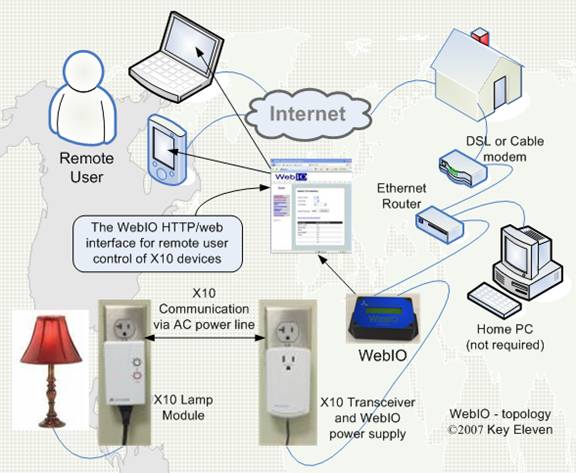
WebIO Hardware Setup
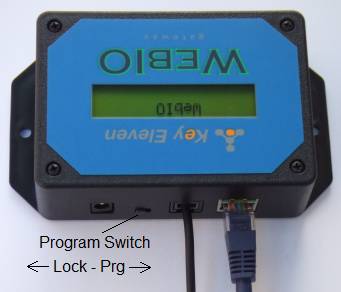
Rear View of WebIO
Ethernet Connection
The WebIO provides an RJ45 jack for the Ethernet connection to your Local Area Network. The left LED of the RJ45 jack will light when the WebIO is correctly connected to your LAN.
X10 Interface
The WebIO provides an RJ11 interface for connection to a PowerLinc X10 transceiver, which also provides power for the WebIO.
A version of the WebIO with an optional barrel connector will support the TW523 X10 transceiver. When using a TW523, a 12volt dc adapter must be used to provide power to the WebIO. Also, an internal WebIO jumper (J6) must be moved from the left to the right position (nearest barrel connector) to enable the barrel connector for power. This also disables the RJ12 connector (X10 Transceiver connector) as the power source.
Program Switch
The Program Switch located on the rear of the WebIO is used to perform the following functions:
- Restore factory default settings.
- Allow storage of user settings.
- Display current IP address
1. Restoring Factory Default Settings
To restore the WebIO to factory default settings perform the following tasks:
a. Remove power.
b. Switch the Program Switch to the Program (Prg) position
c. Reapply power. The WebIO boot process will display the message "Factory Default".
d. Set the switch back to the Lock position.
Restoring to factory defaults removes the user set static IP address. The factory default is to accept an IP from a DHCP server. Restoring to factory defaults also clears any user-set pass code.
2. Allowing Storage of User Settings
Setting the Program Switch to the Prg position while the WebIO is powered allows the user to program a static IP address as well as a pass code as described later in this manual. The WebIO will save the user-set IP address and pass code to FLASH memory for recall even if power is lost and restored.
This function of the Program Switch is used for security. Remember to set the Program Switch to the normal (Off/Lock) position after programming to prevent unauthorized remote users from reprogramming the WebIO.
3. Display the Current IP Address
The program switch is also used to display the current IP address of the WebIO. Switching to any position will update the display with the WebIO current IP address.
Remember to set the Program Switch to the normal (Lock) position to prevent unauthorized remote users from reprogramming the WebIO.
WebIO Network Setup
The WebIO can operate with either an IP address obtained from a DHCP server, by using the WebIO Network Setup Utility, or by using the utilities ARP and Ping.
Setting the WebIO IP Address Using the WebIO Network Setup Utility
The WebIO CD-ROM includes an installation program for the WebIO Network Setup Utility. The installation program and the WebIO Network Setup Utility will run on Windows 9x, 2000, and XP. The WebIO Network Setup Utility provides for an easy IP address setup
For installation of the WebIO Setup Utility, run “setup.exe” from the WebIO CD-ROM. After installation run the WebIO Setup Utility from your Windows Program menu.
Running the WebIO Network Setup Utility displays the following form:
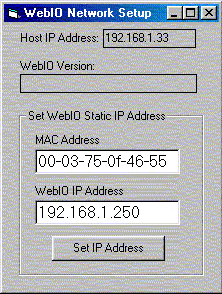
- In the MAC Address field, enter your unique MAC address found on the bottom of the WebIO.
- In the WebIO IP Address field enter the desired IP address to be assigned to the WebIO.
- Click the Set IP Address button. After a few moments a message will notify success or failure.
On success the WebIO Version field will display the WebIO firmware version.
Note: This Application uses ARP and Ping behind the scenes as described in Appendix A.
To instruct the WebIO to store its IP address in Flash memory, see the section titled “Store a Static IP address”.
Setting the WebIO IP Address Using a DHCP Server
Getting an IP Address from a DHCP server
The WebIO will accept an IP from a DHCP server.
Switch the WebIO program switch to display its current IP address on the LCD.
If the WebIO shows an IP address of 0.0.0.0 then an IP address has not been received. It can take many seconds to receive an IP from a DHCP server.
When using DHCP with WebIO, Internet routing to the WebIO may not be practical in the case where WebIO is power cycled (rebooted) and then receives a different IP address then previously assigned. Also Routers may not have the ability to forward to an IP address in the range of the DHCP assigned address. To avoid this problem when using a router with DHCP enabled it is best to us a static DHCP service (or Bootp service) where the DHCP server assigns a defined IP address to the WebIO based on the WebIO MAC address.
Note: In some rare cases depending on DHCP server, WebIO prioritizes DHCP over static, regardless of the WebIO Lock switch position. If you assign WebIO a static IP address on a network with a DHCP server, WebIO may accept a new IP address received from the DHCP server. In some cases, to use WebIO’s static IP function, you may need to not have a DHCP server (not so practical) or have the DHCP server always assign the same IP dependent on MAC address. (Static DHCP/bootp).
Manually Setting the WebIO IP Address Using ARP and Ping
Setting a Static IP Address (When no DHCP Server is Available)
ARP and Ping can be used to set the WebIO IP address. There must not be a DHCP or BOOTP server on the same network as the WebIO when using this method for setting the IP address.
Windows 9x example:
IP for WebIO: 192.168.1.25
MAC for WebIO: 00-03-75-1f-0c-9f
PC’s IP address: 192.168.1.150
1. Enter the
desired IP address for the MAC address of the WebIO into your PCs ARP table.
From a Windows command prompt Enter:
arp –s 192.168.1.25 00-03-75-1f-0c-9f
192.168.1.150
2. Ping the IP
address of the WebIO by entering the following command at a Windows command
prompt.
ping 192.168.1.25.
When received, the WebIO will accept this address.
For more information on setting an IP address see Appendix A.
Routable Network Setup
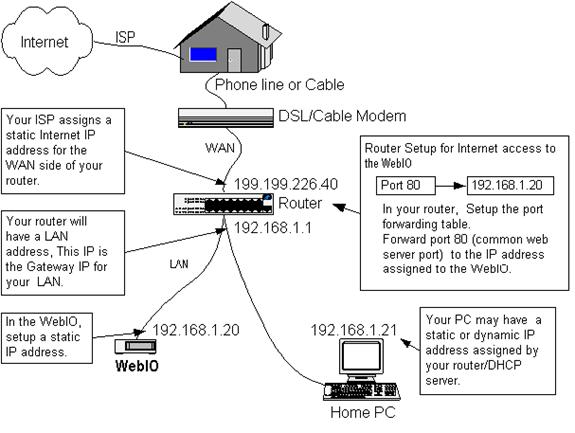
To setup the WebIO for remote Internet access, the WebIO will need to be assigned either an Internet IP address, or more commonly, placed behind a router (LAN side) that has an Internet IP address and is configured to forward an IP port to the IP address of the WebIO. This method is referred as “router port forwarding”.
Router Setup (router port forwarding)
Most routers have a feature that allows a user-configuration
for port forwarding. Port forwarding is used to allow an outside request from
the Wide Area Network (WAN) side of the router to be routed to a specific
IP address of a device or computer existing on the inside router
network, referred to as the Local Area Network (LAN).
Message requests sent over a TCP/IP network (such as the Internet) use port numbers as a way to specify a specific service on a server. For example, a Web service will listen on port 80 where as an email service on the same server will listen on port 25. This way a message directed to the server using an IP address will specify a port number to direct the message to the appropriate service (web service or e-mail service). As another example, when a web browser asks a web server for a web page, the browser sends a message to the server, referring to its IP address and referring to the web services port number on the server. By default a web browser sends requests to port 80, the default port used by web servers.
When setting up a router to forward a port to the WebIO, using the default of port 80 is suggested. However the WebIO will accept an HTTP connection on any port, allowing for router setup in the case that an existing web server on the LAN side of the router is already assigned to port 80. The WebIO would then need to be assigned to a different port such as 81 or 8080.
When using a port other than 80, you will need to specify the port number on the browsers URL using “:” {and port number}. For example to specify port 91 at IP address 192.168.1.10, enter: http://192.168.1.10:91
Below is a network topology diagram that should help in understanding router setup:
Using the WebIO
WebIO Functions
The WebIO includes an embedded web server, which provides its interface to the user via a web browser.
The web interface provides links for:
1. Controlling X10 Devices
2. Setting the LCD messages
3. Setting a Static IP address
4. Setting a User Passcode
Controlling X10 Devices
The web interface provides two methods for controlling X10 Devices.
The Control X10 Labeled Devices page (shown below) allows for easy control of X10 On/Off commands for predefined X10 devices.
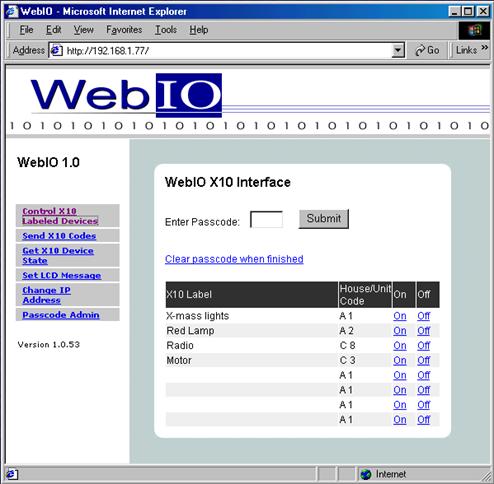
The Control X10 Labeled Devices page (above) shows a table of predefined X10 Devices. The On and Off columns contain links for setting the On/Off state of the device in the selected table row.
When a WebIO pass code is set, the On/Off links will not trigger X10 commands until a pass code is entered in to the Enter Pass code field and the submit button is clicked. After the pass code has been submitted the Clear pass code when finished link must be selected to re-lock the WebIO X10 operation.
Creating Device Labels
The WebIO Device Label list is defined using the WebIO Network Setup Utility.
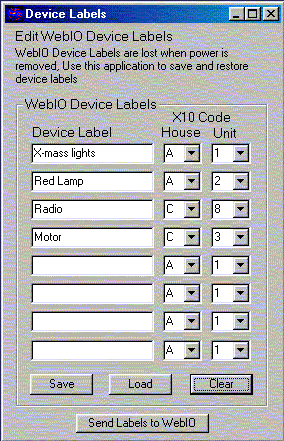
To define an X10 device, enter a name in one of eight Device Label fields and select the House and Unit code for the device from the appropriate drop list box. After completing the Device Label table, click the Send Labels to WebIO button to send the device labels to the WebIO. Next use a web browser to verify your device labels have been successfully sent to the WebIO Control X10 Device Labels page.
Device labels are not stored in the WebIO Flash memory. Upon rebooting the WebIO the device labels will be lost, requiring the WebIO Setup application to be used again to restore the device labels. The Save button is used to store your device label definitions on your PC. The Load button will load your last saved device labels.
Manual X10 Control
Another method for controlling X10 devices is to use the Send X10 Codes web page. This page allows for manually selecting X10 device House code, Unit code, and the Command to be sent.
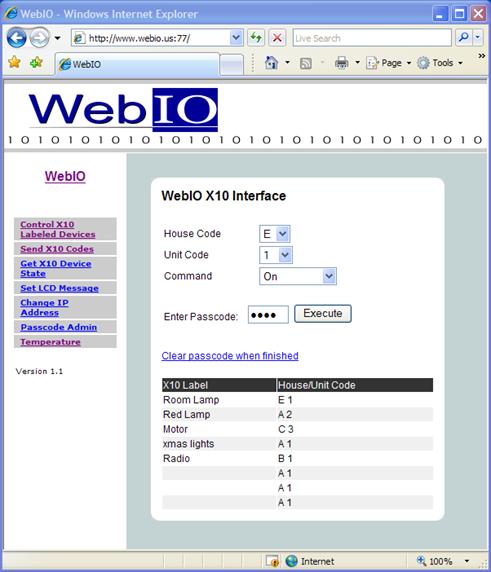
To execute an X10 function, select House code, Unit code and Command from the drop list boxes then click the Execute button.
Commands include:
- On - Set device on
- Off - Set device off
- On-wait-Off - Set device on, wait 4 seconds then set device off
- Off-wait-On - Set device off, wait 4 seconds then set device on
When a WebIO Pass code is set, the pass code must be entered into the Enter Pass code field before clicking the Execute button. If no pass code or the incorrect pass code is entered, the WebIO will not execute the selected X10 function.
Toggle Command
The WebIO Toggle action is: (on-wait-off) or (off-wait-on) with a 4 second wait state.
This feature is particularly useful for remotely rebooting Network Routers and other equipment where remote or local access to WebIO will be briefly interrupted.
For Example; In case of remotely rebooting a TCP/IP Network Router of which WebIO is connected, and the Router is connected to an X10 Appliance module:
A WebIO toggle “off/on” command sent to the Routers X10 module, will power off the router, causing WebIO to be inaccessible via TCP/IP network. Then to complete the toggle command, WebIO waits 4 seconds and sends an “on” command providing power to the Router and access to WebIO after the Router has booted and become operational again.
The Toggle feature is new to WebIO version 1.0.30. WebIO version is displayed on the LCD as it is powered up.
Note: X10 is not necessarily practical for controlling and maintaining a secure and reliable environment for network equipment.
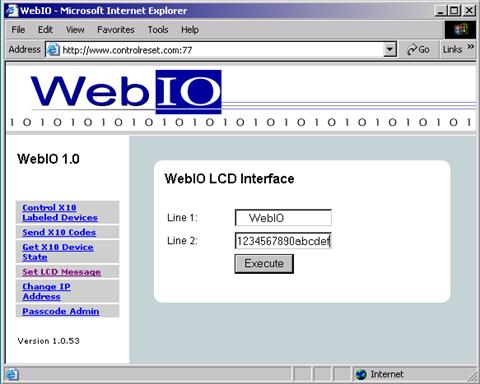
Setting the LCD Message
The Set LCD Message page provides an interface for displaying messages on the WebIO LCD display. The LCD will display 2 lines of 16 characters.
To display a message, enter the message into the Line 1 and Line 2 text boxes, then press the Execute button.
Storing a Static IP Address
The WebIO can be configured to remember its static IP address, even when power is cycled. This is useful when a DHCP server is not available to assign the WebIO an IP address, or you do not want to manually assign an address each time the WebIO is power cycled. Another use for assigning a static IP address is when a router or other software process needs to know the WebIO IP address for routing messages.
The WebIO, Change IP Address page provides an interface for saving an IP address to the WebIO FLASH memory.
To save an IP address:
- Move the WebIO Program Switch to the program position.
- From a browser go to the WebIO Change IP Address page, enter the IP and submit the page. Note the LCD message displaying the static IP.
- Switch the Program Switch back to the Off position to prevent remote programming and prevent the restoration to factory defaults on reboot.

Note: If you used ARP to set an IP address for the WebIO, the WebIO IPAdmin page will only accept the same IP as in your PC’s ARP table. To assign a different IP address to the WebIO, first clear your ARP table using arp –a to display your ARP table and arp –d {IP address to delete}, to remove an IP address before using the above procedure to save a different IP address for the WebIO.
Setting a User Passcode
The WebIO can be configured with a passcode for preventing unauthorized control of X10 devices. When a passcode is set both the Control X10 Labeled Devices and the Send X10 Code web pages will require the passcode field to contain the correct passcode to send an X10 command. When the passcode is incorrect the WebIO gives no indication of invalid passcode and no indication that it did not perform the X10 command. To verify a device state, use the Get X10 Device State web page.
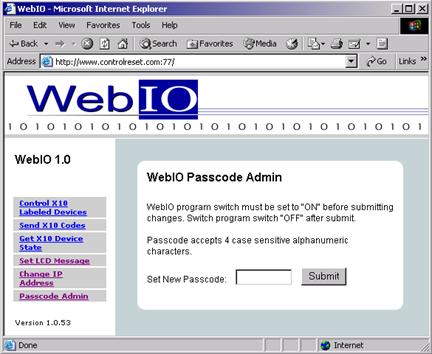
The WebIO, Passcode Admin page provides an interface for saving an passcode to the WebIO FLASH memory.
1. Move the WebIO Program Switch to the program position.
2. From a browser go to the WebIO Passcode Admin page, enter a 4 character alphanumeric (case sensitive) passcode and submit the page. Note the LCD message displaying acceptance or failure of the new passcode.
The WebIO will only uses the first four characters when a passcode of more than 4 characters are entered.
3. Switch the Program Switch back to the Off position to prevent remote programming and prevent the restoration to factory defaults on reboot.
When a passcode is set, the WebIO will display the passcode on the LCD for 2 seconds when power is applied.
To remove a passcode the WebIO must be restored to factory defaults. See the section titled “Restoring Factory Default Settings”
WebIO Security
The WebIO passcode provides a minimum amount of security. All WebIO information including the passcode sent from a users web browser to the WebIO web server is not encrypted, this means that it is possible for someone with the right tools and knowledge could discover your passcode. For this reason it is not suggested that a WebIO open to the Internet (Internet routable) be used for critical applications such as controlling a thermostat.
Even though the WebIO doesn’t provide high Internet security, there are methods for adding high security that are beyond the scope of this manual.
Two examples of a secure WebIO setup:
- Virtual Private Network (VPN) can be setup that provides an encrypted tunnel over the Internet between a remote users computer or LAN and a local router of which the WebIO is hiding behind.
- The WebIO can be hidden behind a secure web server, which relays remote messages to the WebIO.
Temperature Sensor
WebIO includes an internal temperature sensor and web page interface for reading the temperature in degrees Celsius and Fahrenheit. This sensor provides an approximate evaluation of the room ambient temperature of which WebIO is installed. But due to the sensor being internal to WebIO, temperature readings will typically be slightly higher then ambient temperature by 2 degrees Celsius or more.
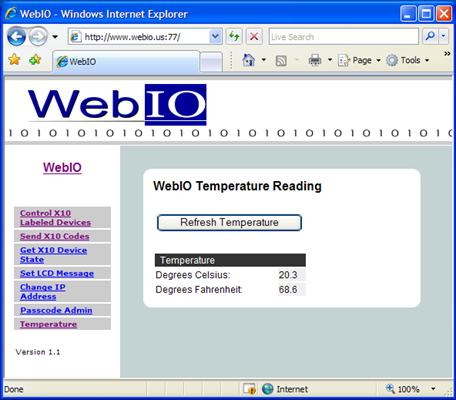
The WebIO Temperature interface displays both Degrees Celsius and Fahrenheit. Select the “Refresh Temperature” button to capture a new temperature reading.
Temperature sensor range is from -20C to 50C. (Although WebIO operating temperature range is 0C to 50C) Temperature accuracy is typically better then +/- 5 degrees Celsius.
Note: When WebIO is powered up, allow 5 to 10 minutes for the temperature reading to stabilize. This is due to the sensor being internal to the WebIO enclosure and the temperature reading being compensated for internaly generated heat by the WebIO electronics. Once WebIO has “warmed up” Temperature reading will accurately represent ambient room temperature.
Temperature is new to WebIO version 1.3 (as displayed on the WebIO LCD during power up).
Appendix A
WebIO Detailed Manual Network Setup
LAN setup with DHCP:
- Connect WebIO to a 10/100BT hub or switch. The left green LED of the WebIO RJ45 jack will light when correctly connected.
- After about 5 seconds the WebIO will indicate its IP address. An IP address of 0.0.0.0 indicates the WebIO had not yet received and IP address for the DHCP server. It can take a minute or more for the WebIO to receive and IP address.
- Change the position of the Program Switch to update the display with the current IP address. After receiving an IP address, the program switch should be set in the normal (off) position to prevent reset to factory default if rebooted and to lock out unauthorized remote programming.
- Connect to the WebIO using a web browser. Connect to the URL of the WebIO by manually typing its IP address: http://{IP address}
For example: http://192.168.1.100
- A successful connection will display the main WebIO page.
- At this time you may choose to set a Static IP (see instructions: Setting Static IP Address). Without a Static IP, upon reboot of the WebIO it may receive a different DHCP assigned IP address.
Note: WebIO prioritizes DHCP over static, regardless of the WebIO Lock switch position. If you assign WebIO a static IP address on a network with a DHCP server, WebIO will accept a new IP address received from the DHCP server. To use WebIO’s static IP function, you need to not have a DHCP server (not so practical) or have the DHCP server always assign the same IP dependent on MAC address. (Static DHCP/bootp).
LAN Setup without DHCP:
- This setup requires the use of ARP. A DHCP or BOOTP server must not be present as these will interfere with an ARP command. If either a DHCP or BOOTP server exists, connect the WebIO using a crossover cable to a PC.
- Connect WebIO to a 10/100BT hub or switch. The left green LED of the WebIO RJ45 jack will light when correctly connected.
- Use ARP and Ping to assign an IP address to the WebIO. From a PC running Windows, open a command window.
- Obtain your IP address:
i. Under Window9x, Enter: ipconfig
ii. Linux, Enter: ifconfig
- Enter the IP address and MAC address of the WebIO into your ARP table: arp –s {WebIO IP address} {WebIO MAC address} {your PC IP address}.
i. Windows 9x Example:
arp –s 192.168.1.101 00-aa-00-62-c6-01 192.168.1.10
ii. Linux Example:
arp –s 192.168.1.101 00:aa:00:62:c6:01 192.168.1.10
- Assign the IP address to the WebIO, Enter: ping {WebIO IP address},
i. Example: ping 192.168.1.100
- If the ping receives a reply, then the WebIO has received the IP address. If no reply is received, see Troubleshooting - Assigning IP address using ARP and Ping.
- Verify that the WebIO has received the IP Address (ensure the reply is not from another device). Change the position of the Program Switch to update the display with the current IP address. The Assigned IP address should be displayed.
- Connect to the WebIO using a web browser. Connect to URL: http://{IP address} for example: http://192.168.1.100
- A successful connection will display the main WebIO page.
- At this time you should assign a Static IP address (see instructions: Setting Static IP Address). Without a Static IP, upon reboot of the WebIO it will look for a DHCP server or default to IP 0.0.0.0.
- If using a crossover cable, the WebIO can now be plugged into the LAN with no need to power down.
Appendix B
Limited Warranty
Key Eleven, LLC. Warrants this Product (not including any accessories) against defects in material or workmanship as follows:
Labor and Parts: For a period of 60 day from the date of purchase, if this Product is determined to be defective, Key Eleven will repair or replace the Product, at its option, at no charge, or pay the labor charges to any Key Eleven authorized service facility. After the Warranty Period, you must pay for all labor charges.
To obtain warranty service, you must take the Product, or deliver the Product freight prepaid, in either its original packaging or packaging affording an equal degree of protection, to Key Eleven at your expense.
This warranty does not cover customer instruction, installation, set up adjustments or signal reception problems.
This warranty does not cover cosmetic damage or damage due to acts or God, accident, misuse, abuse, negligence, commercial use, or modification of, or to any part of the Product. This warranty does not cover damage due to improper operation or maintenance, connection to improper voltage supply, or attempted repair by anyone other than a facility authorized by Key Eleven to service the Product. This warranty does not cover Products sold AS IS or WITH ALL FAULTS, or consumables (such as fuses or batteries). This warranty is valid only in the United States.
Proof of purchase in the form of a bill or sale or receipted invoice which is evidence that the unit is within the Warranty period must be presented to obtain warranty service.
Repair or replacement as provided under this warranty is the exclusive remedy of the consumer. Key Eleven shall not be liable for any incidental or consequential damages for breach of any express or implied warranty on this product. Except to the extent prohibited by applicable law, any implied warranty of merchantability or fitness for a particular purpose on this product is limited in duration to the duration of this warranty.
Some states do not allow the exclusion of limitation of incidental or consequential damages, or allow limitations on how long an implied warranty lasts, so the above limitations or exclusions may not apply to you. In addition, if you enter into a service contract with Key Eleven within 60 days of the date of sale, the limitation on how long an implied warranty lasts does not apply to you. This warranty gives you specific legal rights, and you may have other rights which vary from state to state.
Appendix C
Technical Specification
Technical Features
- Built in web interface for X10 power line control and WebIO configuration
- LCD display for indication of IP address, configuration messages and user messages
- DHCP client for easy Ethernet network installation - Static IP address settings when DHCP is not available
- Supports X10 power line “on”, “off” and “query” commands
- Supports three two popular X10 power line transceivers (Powerlinc and TW523)
- No computer required, WebIO is a total power line control system/server in a box
- Very low cost embedded systems design based on two 8-bit microcontrollers
- No operating system, true micro code for reliable functionality and rapid boot process
- WebIO configuration is secured via a physical “program mode” switch to prevent unauthorized configuration via web interface
- Hardware watchdog for insured uptime
Specifications
Model Number AFX1110
Ports 1 RJ45 10 Megabit Ethernet
1 serial ports for PLC transceiver
Storage EEPROM for configuration storage of IP address and security key
Expansion ports Internal GPIO lines
Indicators LCD interface for power, IP address,
Communication activity and Gateway status
LED Ethernet status indicators
Power Line Controller Supports the SmartHome X10 PowerLinc
Supports the X10 TW523 (also requires 9-12VDC power, center tap
positive (+) at the 2mm barrel connector)
Environmental
Dimensions 1-7/16" x5-1/4" x3" (HxWxD)
Unit Weight 6.0 oz.
Enclosure Plastic enclosure with mounting holes
Power Input 9-12VDC
Power consumption 64mA at 12VDC
Sleep mode as low as 34mA, 12VDC
Power Supply Input: AC120V~
(included) Output: DC12V 250mA
Certifications WebIO is in compliance with the electromagnetic compatibility
requirements defined in FCC Part 15 Subpart B.
And Canada ICES-003, Issue 4:2004 Class B.
Operating Temp. 0° to +50°C, (limitations due to LCD display)
Storage Temp. -10° to +60°C, (limitations due to LCD display)
RoHS Not RoHS compliant
Product Information
For more information and software updates, visit the WebIO web site:
or contact:
Key Eleven
1322 11th Street South
Moorhead, MN 56560 USA

Copyrightã2005 Key Eleven, LLC
Windowsâ is a registered trademark of Microsoft Corporation